
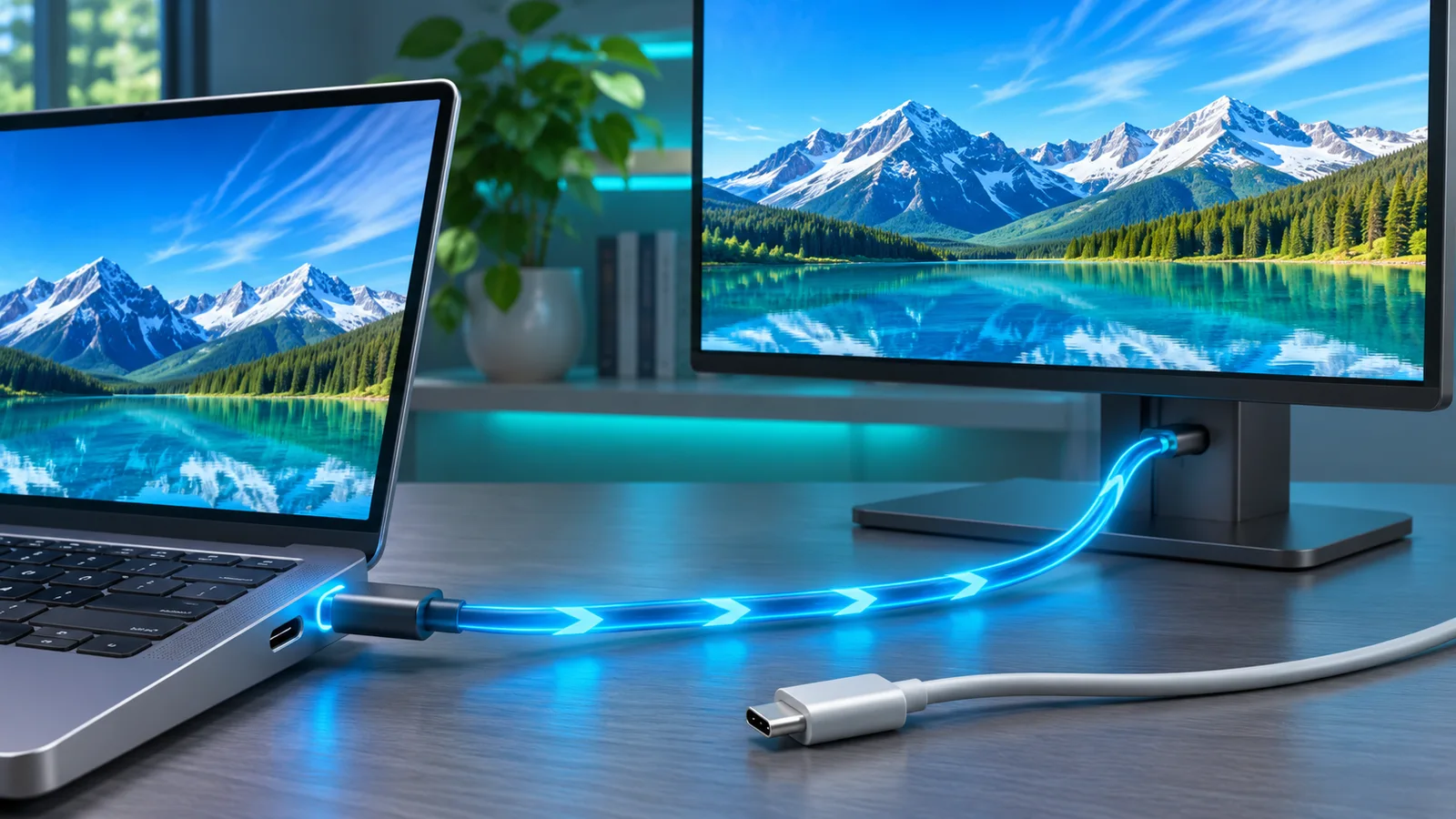
A USB-C port supports video only when the device manufacturer wired it for a display standard such as DisplayPort Alt Mode, USB4, or Thunderbolt. The connector’s shape alone proves nothing. A charging-only USB-C port and a full video-capable port can look identical.
This is the same reason one USB-C cable can charge a laptop while another also carries high-speed data and a monitor signal. Our USB-C Power Delivery guide explains the separate charging limits. Here, the goal is to determine whether your port can drive a display before you buy a cable or dock.
Check the computer’s specifications first
The product manual or manufacturer’s technical page is the most reliable source. Look under Ports, Expansion, or Display Support for one of these terms:
- DisplayPort Alt Mode or DP Alt Mode
- DisplayPort over USB-C
- USB4 with display support
- Thunderbolt 3, 4, or 5
- A stated external-display resolution beside the USB-C port
A specification that only says “USB-C,” “USB 3.2,” or “Power Delivery” is not enough. USB data speed and charging support do not guarantee video output. Some laptops even have two USB-C ports with different capabilities, so confirm the exact port location shown in the manual.
Look for a DisplayPort or Thunderbolt symbol
VESA’s official DisplayPort FAQ says a USB-C connector that supports DisplayPort Alt Mode will normally have a DisplayPort logo near the port. A lightning-bolt symbol commonly identifies Thunderbolt. These markings are helpful, but manufacturers do not label every compatible port consistently.
No symbol does not automatically mean no video. Treat the logo as a positive clue, then verify it in the device documentation. Do not confuse a battery, plug, or “PD” symbol with a display symbol. Those markings describe charging.
The cable must support the job too
Once the port is confirmed, use a USB-C cable or adapter rated for video. A basic charging cable may contain only the wiring needed for power and slow USB data. It can charge perfectly while producing a black screen.
For a USB-C monitor, use the monitor’s included full-featured cable when possible. For an HDMI display, use a USB-C-to-HDMI adapter that explicitly requires DisplayPort Alt Mode. For DisplayPort, VESA recommends a certified USB-C-to-DisplayPort adapter cable.
Resolution and refresh rate depend on the port, adapter, cable, monitor, and how many high-speed lanes remain available for USB data. A setup that handles 4K at 60Hz may not support the same color depth, HDR mode, or refresh rate through a cheaper adapter.
How to test USB-C video output
- Connect one monitor directly with a known video-capable USB-C cable or adapter.
- Turn the monitor on and select the correct input.
- In Windows 11, open Settings, System, Display, then choose Detect under Multiple displays.
- Test the same monitor and cable on another confirmed video-capable device if no image appears.
- Update the laptop’s graphics, chipset, USB4, or Thunderbolt driver from its manufacturer.
Testing directly matters because a dock introduces another possible failure point. If a direct adapter works but the dock does not, the port probably supports video and the dock, cable, power supply, or driver deserves closer attention.
Why a USB-C dock can still fail
A dock cannot create DisplayPort Alt Mode when the host port lacks it. Some docks use DisplayLink instead, which compresses video over ordinary USB data and requires a driver. DisplayLink can be useful for office screens, but it is a different technology and is usually less suitable for high-refresh gaming or latency-sensitive work.
Also check the dock’s power requirements. A bus-powered adapter may work with one display but become unstable with multiple displays and USB accessories. If your goal is an extended desktop, our guide to HDMI splitters and multi-monitor alternatives explains why a splitter only mirrors one signal.
What to do when the port cannot output video
Use the laptop’s HDMI or DisplayPort output if it has one. Otherwise, a DisplayLink adapter can add a basic office display through a normal USB data port. For gaming, video editing, variable refresh rate, or HDR, a native display output is the better choice.
The practical rule is simple: verify the manual, identify DisplayPort Alt Mode, USB4, or Thunderbolt, and use a full-featured video cable. Never buy an adapter based only on the fact that it fits the USB-C connector.