Understand and explore different operating systems, from Windows to macOS and beyond.
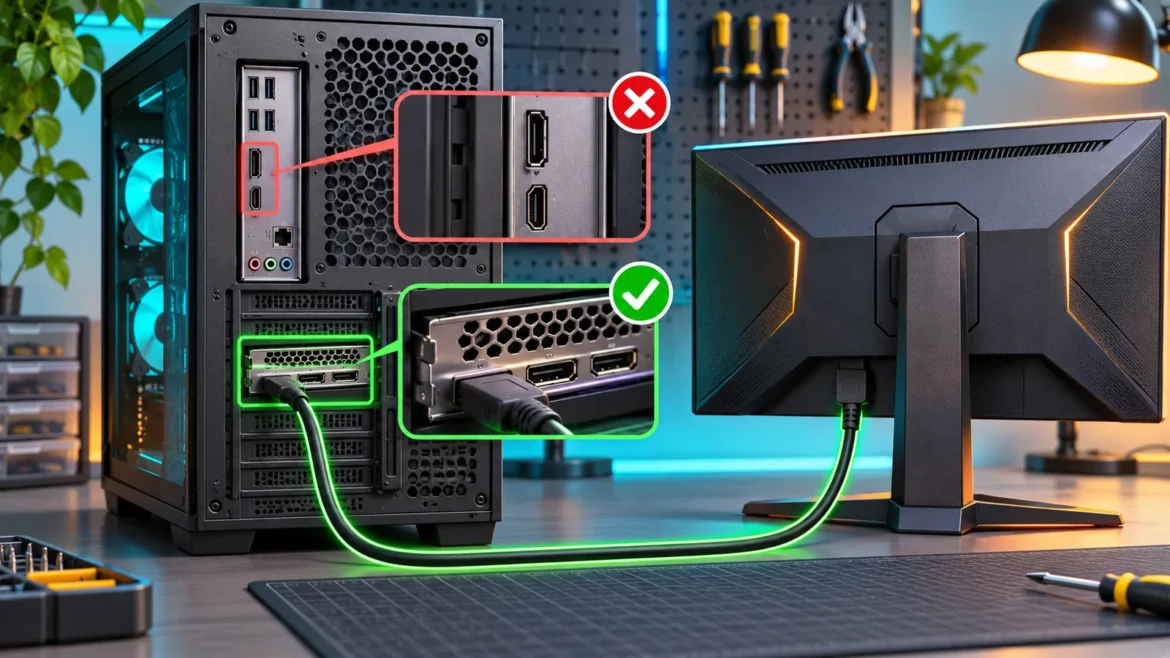
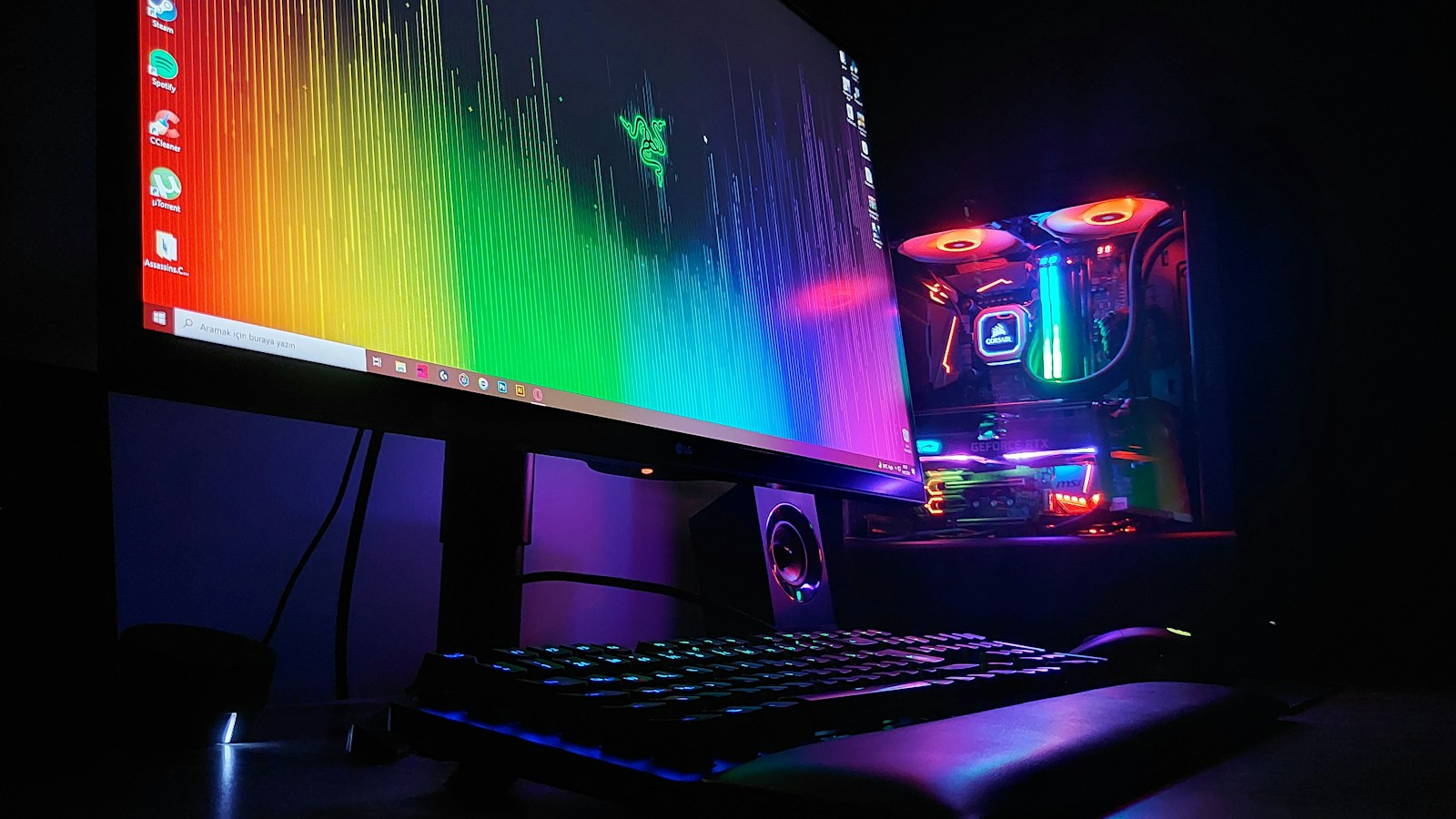
Plug a desktop gaming monitor into the graphics card, not the motherboard. That one choice ensures your display receives the image produced by the dedicated GPU and gives you the best chance of using the monitor’s full refresh rate, resolution, adaptive sync, and gaming features.
Why the graphics card ports are usually correct
A desktop with a dedicated graphics card has two separate groups of video outputs. The motherboard’s HDMI or DisplayPort connectors sit near the USB and network ports. The graphics card’s connectors are lower on the case, lined up with the expansion slots.
When the cable is connected directly to the graphics card, the monitor receives the dedicated GPU’s output. This is the normal path for gaming, 3D work, video effects, and other accelerated applications. It also avoids configuration problems that can appear when the motherboard output is disabled or linked only to the CPU’s integrated graphics.
If the display is working but refuses to go beyond 60Hz, use our 144Hz monitor setup checklist after moving the cable. The correct port is necessary, but Windows settings, cable bandwidth, and the monitor’s own menu can still limit refresh rate.
When do motherboard video outputs work?
Motherboard video ports rely on integrated graphics built into the processor. They are not powered by the motherboard alone. As MSI’s official support guide explains, a CPU without integrated graphics cannot produce an image through those ports.
Motherboard output can be useful in a few situations:
- You do not have a dedicated graphics card.
- You are troubleshooting a suspected GPU problem.
- You need an additional office display and have deliberately enabled integrated graphics.
- You use integrated graphics for a specific encoding, power-saving, or diagnostic workflow.
Some systems automatically disable integrated graphics after a discrete GPU is installed. Others let you enable both in BIOS or UEFI with a setting labeled IGD, iGPU Multi-Monitor, Integrated Graphics, or something similar. The wording varies by motherboard.
Does using the motherboard port reduce gaming performance?
It can. On many desktop configurations, the motherboard port means the integrated GPU is driving the display. A game may launch on the wrong graphics processor, or frames rendered by the dedicated GPU may need to pass through another device before reaching the monitor. The result can be lower performance, missing features, extra latency, or confusing application-by-application behavior.
Direct connection to the graphics card also makes it easier to use GPU-specific display features. NVIDIA’s documentation notes that a direct discrete-GPU display path is required to maximize performance and enable features such as G-SYNC in supported configurations.
If a game remains slow after the cable is connected correctly, the next question is whether the system is limited by the processor or graphics card. Our CPU vs. GPU bottleneck guide explains how to check utilization and frame-time behavior.
What if the GPU port shows no signal?
- Shut down the PC and connect the monitor to a port on the graphics card.
- Make sure the graphics card is fully seated and its PCIe power cables are connected.
- Select the matching HDMI or DisplayPort input in the monitor menu.
- Try another GPU port and a known-good cable.
- Boot once with one monitor connected.
- Install or update the graphics driver after Windows loads.
If none of the GPU outputs work, test the motherboard port only if the CPU has integrated graphics. A working motherboard display alongside dead GPU outputs points toward the card, its power, its slot, or a BIOS setting. No image from either path suggests a broader startup issue such as memory, power, or POST failure.
What about laptops and USB-C docks?
Laptops are different because their internal wiring is fixed. A built-in screen, HDMI port, USB-C port, or dock may connect to the integrated GPU, the dedicated GPU, or a hardware switch. You cannot infer the path from the connector’s physical location. Check the laptop manual or GPU control panel for a MUX or display mode setting.
For a desktop tower, however, the rule is simple: if you installed a dedicated graphics card, connect the main gaming monitor to that card. Use the motherboard outputs only for a deliberate integrated-graphics setup or troubleshooting.