
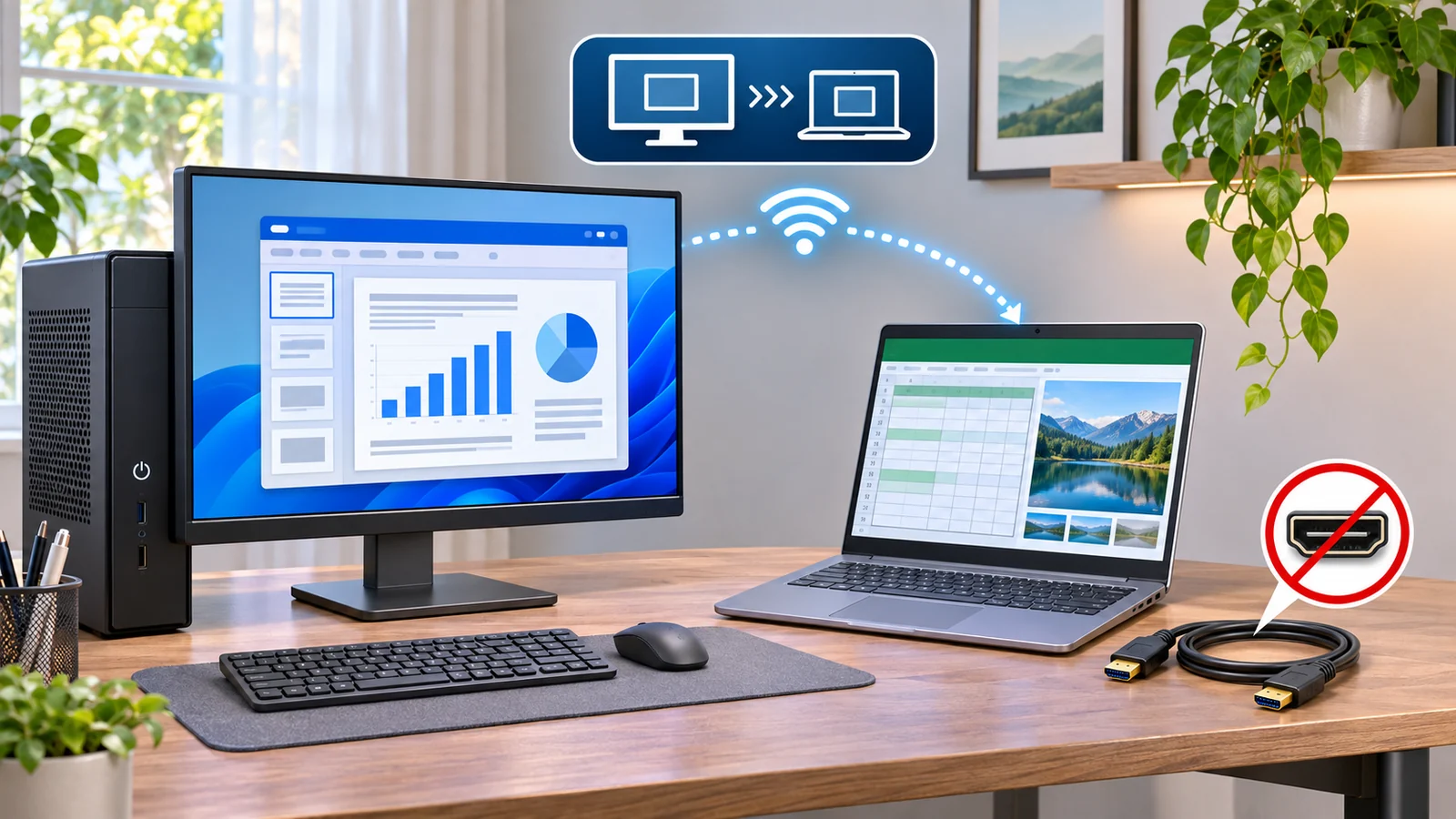
Short answer: yes, you can use many Windows laptops as a second monitor, but an HDMI cable usually will not do it. Most laptop HDMI ports send video out. They do not accept video from another computer. The practical built-in method is Windows Wireless Display, provided both PCs support Miracast.
Before changing cables, check our guides to plugging a monitor into the GPU or motherboard and fixing a monitor stuck at 60Hz. Those solve two common desktop display problems.
Why an HDMI cable usually does not work
A video connection needs one output and one input. Your desktop graphics card has an HDMI output, and the HDMI port on almost every laptop is also an output. Connecting those two ports is like connecting two faucets together: neither side is built to receive the other’s signal.
Dell’s HDMI guide states that its laptops and desktops use HDMI Out, while HDMI In is found on devices such as monitors, TVs, projectors, capture devices, and a limited number of all-in-one computers. Other brands follow the same general pattern, but you should check the exact model manual if the port is labeled unusually.
An HDMI-to-USB cable does not magically add video input either. A proper USB capture device can receive HDMI, but Windows treats it as a camera-like video feed, not as a normal low-latency extended desktop.
How to use Windows Wireless Display
Windows can make a compatible laptop act as a Miracast receiver. The names of individual settings can vary slightly by Windows version, but the setup follows this sequence:
- On the laptop you want to use as the second screen, open Settings > System > Optional features.
- Choose View features, search for Wireless Display, and install it if it is missing.
- Open Settings > System > Projecting to this PC and allow projection on secure networks or everywhere, depending on your preference.
- Launch the Wireless Display app on the laptop. On some versions, the page provides a link that opens it directly.
- On the main PC, press Windows + K, select the laptop, and accept the connection on the laptop.
- Press Windows + P on the main PC and choose Extend. In Settings > System > Display, drag the displays into the same left-to-right arrangement as your physical desk.
Microsoft’s official projection instructions use the same Wireless Display app and Windows + K workflow.
What you need for the wireless method
Both computers need Wi-Fi hardware and Miracast support. They do not always need to be connected to the same router because Miracast can create a direct Wi-Fi connection, but leaving Wi-Fi enabled is required. Keeping both PCs on the same trusted network often makes discovery easier.
Wireless Display is best for documents, chat, email, reference pages, and dashboards. It compresses and transmits the image, so some delay and softer motion are normal. Do not expect it to match a wired gaming monitor for fast shooters, rhythm games, color-critical editing, or high-refresh-rate play.
Fix a laptop that does not appear
First confirm that the Wireless Display optional feature is installed on the receiving laptop and that its app is open. Turn on Wi-Fi on both systems, even if the main PC also uses Ethernet. Then update Windows, the Wi-Fi driver, and the graphics driver.
If the connection worked previously, remove the wireless display from the main PC’s known devices, restart both computers, and pair again. Microsoft’s wireless display troubleshooting page also recommends checking Miracast support and current device firmware.
A work or school PC may block projection through organization policy. Some older Wi-Fi adapters simply do not support Miracast. In those cases, no Windows setting can add the missing hardware capability.
Better alternatives for gaming or permanent setups
- Use a real monitor: this gives the lowest latency, the sharpest image, and the most reliable extended desktop.
- Try a software display app: third-party apps can send a desktop over your network, but quality, privacy terms, and free-tier limits vary.
- Use Remote Desktop: this is useful when you want to control another PC, not when you need one seamless extended desktop.
- Use a capture card: choose this when you need to view or record an HDMI source such as a console. Expect some preview latency.
The bottom line
A laptop can serve as a useful second screen for productivity, but not through its normal HDMI output. Windows Wireless Display is the best no-cost option when both machines support Miracast. For gaming, daily office use, or any task where latency and image quality matter, a dedicated wired monitor remains the stronger solution.