
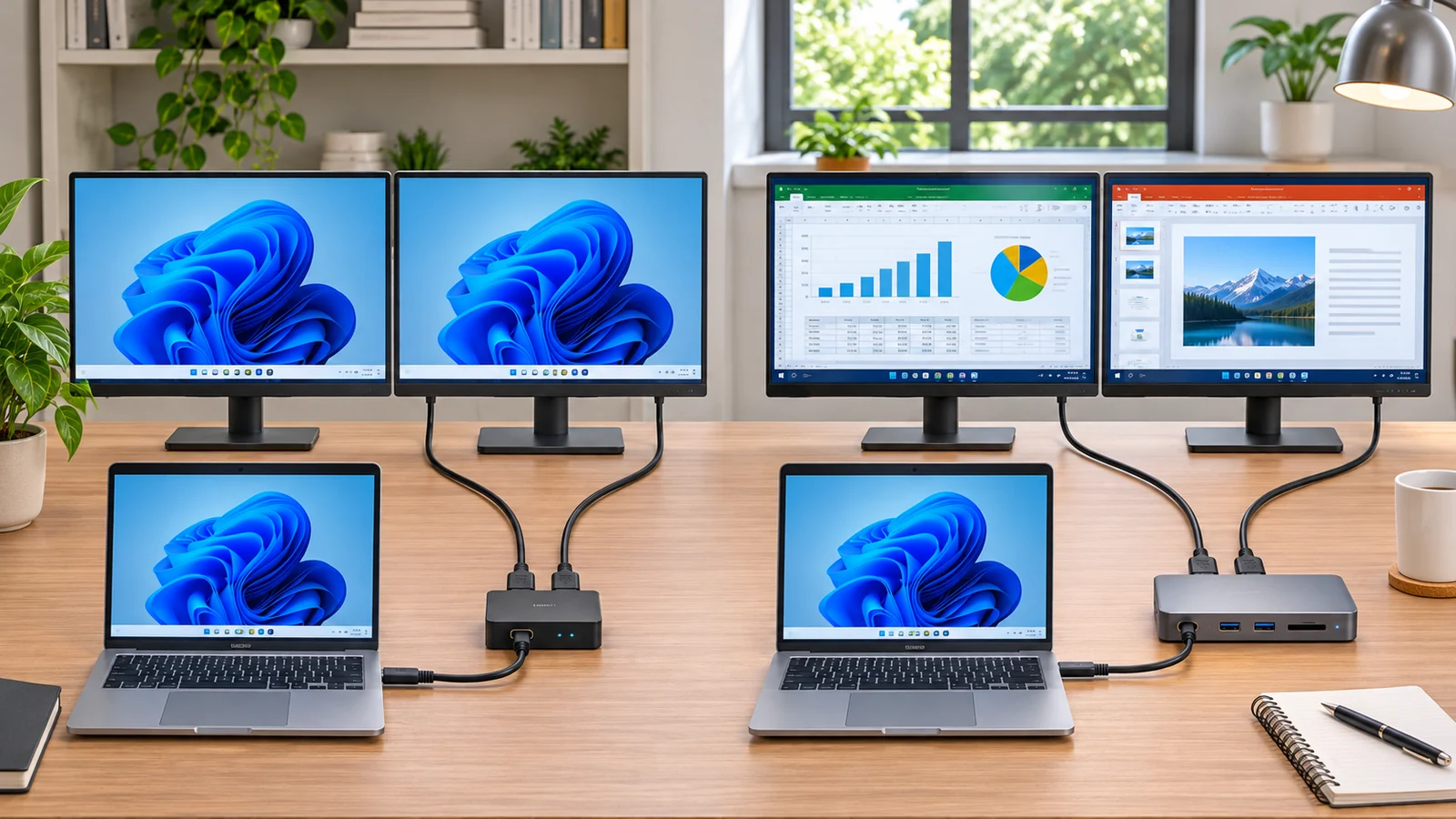
An HDMI splitter can send one computer image to two screens, but it cannot turn one HDMI output into two independent desktop spaces. If both monitors show the same window, the splitter is doing exactly what it was designed to do. To extend your desktop, the computer must generate a separate display signal for each screen.
Why an HDMI splitter only mirrors
A basic splitter takes one HDMI signal and copies it to two outputs. Windows still sees one display connection, so both monitors receive the same resolution, refresh rate, and desktop image. An active splitter may strengthen or distribute the signal more reliably, but it does not create another display controller.
Microsoft states this directly in its external monitor troubleshooting guide: a display splitter duplicates the same signal instead of creating two independent signals. That is why changing Windows from Duplicate to Extend cannot separate the screens when they share one splitter input.
Splitters are still useful for digital signage, classrooms, presentations, or a TV and monitor that should show identical content. They are the wrong tool when you want email on one screen and a spreadsheet on the other.
What actually extends two monitors
Use two video outputs on the computer
The simplest solution is one cable per display. A desktop graphics card may offer HDMI plus DisplayPort, or several DisplayPort connectors. Plug both monitors into the graphics card rather than mixing ports without checking compatibility. Our guide to whether a monitor should connect to the GPU or motherboard explains why the dedicated graphics card is usually the correct choice.
Use a compatible USB-C or Thunderbolt dock
A dock can expose multiple video outputs from one physical USB-C or Thunderbolt connection, but the laptop and dock must support independent displays. Look for explicit specifications such as “dual display,” the supported resolutions and refresh rates, and whether the USB-C port supports DisplayPort Alt Mode or Thunderbolt. A USB-C connector alone does not guarantee video output.
Mac users should check the exact model’s external-display limit before buying a dock. Some Apple silicon models support fewer independent external monitors than the dock has ports, and an ordinary dock cannot override that hardware limit.
Use a DisplayPort MST hub
DisplayPort Multi-Stream Transport can carry multiple independent display streams through one compatible DisplayPort or USB-C DisplayPort connection. An MST hub then separates those streams for two monitors. This is a Windows-friendly option, but every part of the chain must support MST, and the combined resolution and refresh rate must fit within the connection’s bandwidth.
Use a USB graphics adapter
A USB adapter based on technology such as DisplayLink creates an additional display through software and a driver. It can be practical for documents, chat, dashboards, and other office work. It is less ideal for competitive games, color-critical work, or protected video because compression, latency, and driver behavior can matter.
How to set Windows to Extend
- Connect each monitor through an independent video path, a compatible dock, an MST hub, or a USB graphics adapter.
- Press Windows key + P and choose Extend.
- Open Settings > System > Display, select Identify, and arrange the numbered screens to match their physical positions.
- Choose the correct resolution and refresh rate for each monitor.
If Windows detects only one external screen, remove the splitter and test each monitor and cable separately. Update the graphics driver, confirm the dock’s power supply is connected, and check the computer’s maximum supported display count. If a high-refresh monitor remains capped, follow our 60 Hz to 144 Hz troubleshooting checklist.
What to buy for your setup
For a desktop with spare GPU ports, buy the correct cable or adapter for each port. For a laptop with a video-capable USB-C or Thunderbolt port, choose a dock whose specifications explicitly match two monitors at your desired resolution and refresh rate. Use MST when the computer supports it and you want a driver-free Windows setup. Consider DisplayLink only when the hardware lacks enough native video outputs and your workload can tolerate a software-driven display.
The key rule is simple: an HDMI splitter is for mirroring. An extended desktop requires two independent display signals, even when those signals travel through one capable dock or DisplayPort connection.