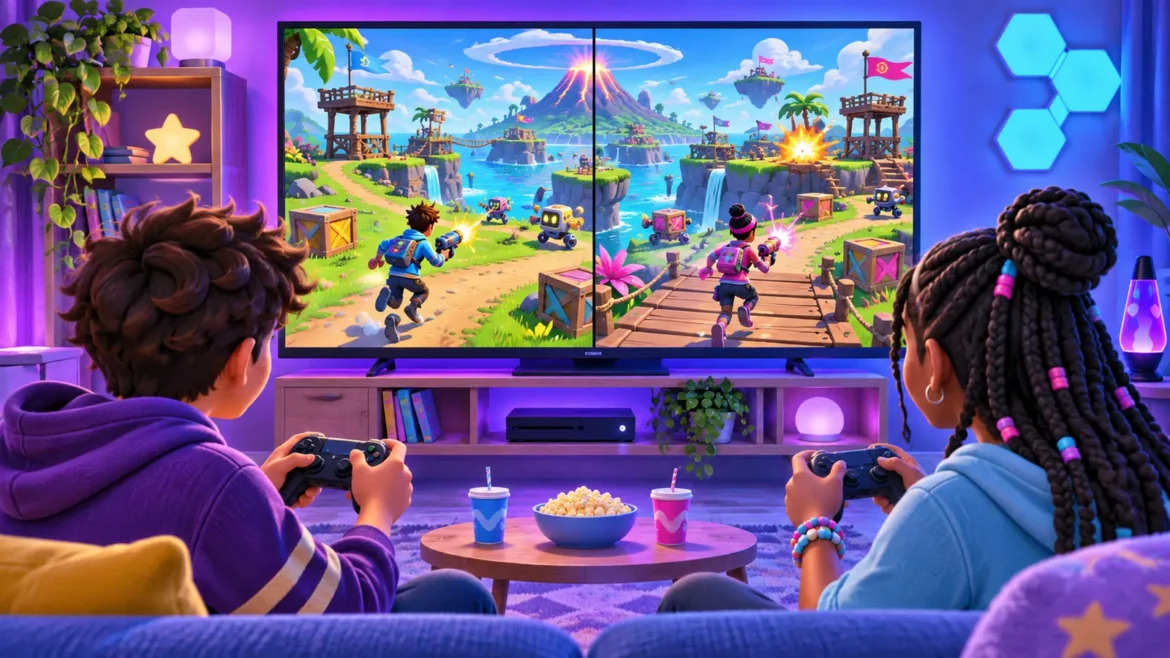
Fortnite supports two-player split-screen on PlayStation and Xbox consoles, including PS5 and Xbox Series X|S. You need two controllers, two console accounts, and an Epic Games account for each player. The feature is not available on Nintendo Switch, PC, or mobile.
This setup is for couch co-op on one TV. If the other player is on a separate device, use our guide to add Fortnite friends across PS5, Xbox, Switch, and PC instead.
How to start Fortnite split-screen
- Launch Fortnite with the first controller and enter the lobby.
- Turn on and connect the second controller.
- Choose the second player’s regular PlayStation or Xbox account. Epic says Guest and Quick Play console accounts are not supported.
- When prompted, link that console account to the second player’s Epic Games account. Linking restores that player’s Locker outfits, Battle Pass, Quests, and other progress.
- Complete the on-screen sign-in. The second player should appear in the lobby.
- Select a supported experience and start the match. The screen divides automatically once local multiplayer begins.
Do not attach the second player to the first player’s Epic account. Each person should use their own account so purchases, progress, and parental settings remain separate.
Which Fortnite modes support two local players?
Epic’s official local multiplayer instructions name Battle Royale, Zero Build, LEGO Fortnite Odyssey, and LEGO Fortnite Brick Life among the supported experiences. Availability can change, so the safest current check is inside Discover: look for the “Great for Local Multiplayer” row or the “Local Players” tag in Game Details.
Split-screen is not supported in Solos, Ranked Mode, Save the World, Creative, Limited Time Modes, or tournaments. Epic’s competitive rules allow only one player per device during tournament events. If a mode does not show local-player support, connecting a second controller will not override that restriction.
Important limits before you start
Both players need the same language setting. The lobby and submenus are not shared, so each player does not get an independent menu view. Inventory cannot be shared between players. If either player disconnects or exits the match, the local multiplayer session ends.
Split-screen also requires a stable internet connection. It is local display and input, but Fortnite still connects to Epic’s online services. Account restrictions, platform outages, or a weak connection can prevent the second player from joining.
Fixes when the second player does not appear
First, return to the Fortnite lobby and reconnect the second controller. Confirm that it is signed into a full console account rather than Guest or Quick Play. Then verify that the second console profile is linked to its own Epic account and that both players use the same in-game language.
Next, open the selected experience’s Game Details and confirm it displays the Local Players tag. Switch temporarily to a standard supported mode such as Battle Royale or Zero Build if you are testing an unfamiliar island.
On Xbox, Epic specifically recommends clearing the console cache when split-screen fails, followed by a restart if the problem continues. A full restart is also a useful first step on PlayStation. Check Epic’s server-status page before repeatedly unlinking accounts, because unlinking can create a much larger account-access problem.
Can both players earn progress?
Yes, when each console profile is correctly linked to a separate Epic account, both players can access their own cosmetics, quests, and progression. Battle Pass access and rewards still belong to the individual account. If you are comparing paid benefits, our explanation of the Fortnite Crew changes covers the subscription rules separately.
The shortest reliable setup is two controllers, two real console profiles, two Epic accounts, matching language settings, and a mode marked for local players. Once those pieces are in place, Fortnite handles the split automatically.