
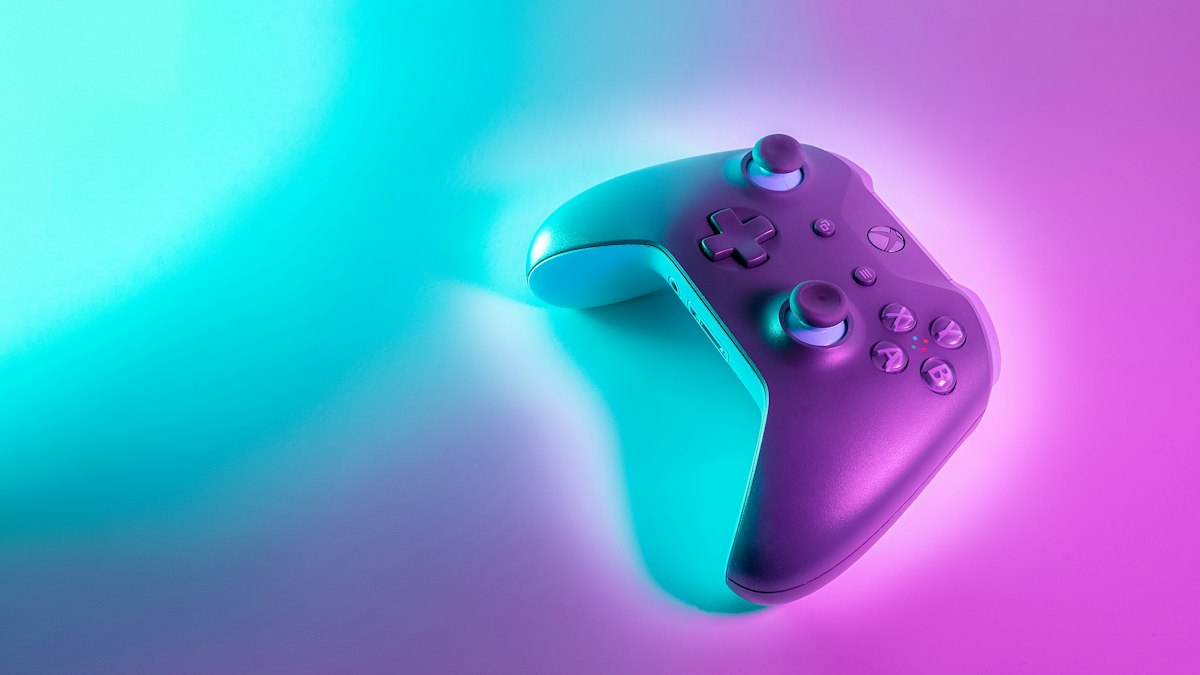
Xbox Play Anywhere does not give you a Steam copy of a game. Its shared-purchase benefit applies to eligible digital games obtained through the Xbox or Windows Store, including qualifying retailer codes. Buying the same title on Steam is a different purchase route.
The program can still save you from buying a game twice if you move between an Xbox console and a Windows PC. The important checks are the game’s Play Anywhere badge, the storefront, and the account you use.
What Xbox Play Anywhere actually includes
Microsoft’s official Xbox Play Anywhere FAQ says an eligible digital purchase lets you play on supported Xbox consoles, Windows PCs, and supported gaming handhelds without paying an additional Play Anywhere fee.
This is a feature of participating games, not a universal rule for everything sold on Xbox. Find the badge on the exact store listing before you pay. A game having both an Xbox release and a PC release does not, by itself, establish shared ownership.
For a current example, Xbox’s September 18 release roundup labels Control Resonant as Xbox Play Anywhere. Our Control Resonant world-structure explainer covers what kind of adventure it is. These are separate buying questions: whether the game interests you, and which purchase gives you the device access you need.
Why a Steam purchase is different
Microsoft identifies the Xbox Store, Windows Store, and participating retailers’ digital codes as the purchase routes for this benefit. Steam is not one of those routes. Do not read “PC version” as “a license in every PC launcher.”
That distinction also applies in the other direction: owning a Play Anywhere game does not mean Steam will add it to your library. Microsoft’s instructions send PC players to the Xbox app and its library.
A publisher might offer separate account-linking or cross-save features. Those should be checked in that game’s documentation. They are not evidence that Play Anywhere transfers a purchase between storefronts.
Check these details before checking out
- Find the badge. Confirm Xbox Play Anywhere on the game listing, rather than relying on a general claim that the game is on PC and console.
- Check the platform and edition. Make sure the listing includes the devices and content you want.
- Read a retailer code’s redemption instructions. A digital code is not automatically an Xbox or Windows Store code. A Steam key still redeems through Steam.
- Use the right Microsoft account. Keep the purchase and the devices you intend to use tied to the account holding that entitlement.
The distinction can change the value of a discount. A cheaper copy in a different storefront may be perfectly sensible if you only play there. It may be the wrong saving if your plan depends on switching to your Xbox without buying again.
Where to find the game after purchase
Microsoft says eligible console games appear as ready to install under My Games and Apps. On a Windows PC or supported Windows handheld, open the Xbox app and check My Library using the same account.
If the game is missing, review the purchase receipt, account, and exact listing before making another purchase. This is a useful order for troubleshooting because an account or storefront mismatch cannot be fixed by buying an unrelated version.
Shared saves do not mean two simultaneous sessions
The FAQ confirms shared progress, add-ons, and achievements across supported devices. It also describes a single shared achievement set, rather than separate Gamerscore rewards for completing the game again on PC.
There is an important limit: Microsoft says you cannot be signed into the same game simultaneously on your console, PC, and handheld through this arrangement. Think of it as continuing your game on another device, not receiving independent copies for a simultaneous multiplayer session.
Play Anywhere is not a promise of cloud access
The official setup instructions describe downloading games to supported devices. The badge should not be treated as proof of support on an unrelated streaming service.
If your goal is to avoid running the game locally, our GeForce NOW device compatibility guide explains a different model, where a remote system renders supported games. Check that service’s catalog and storefront support separately.
Before buying, settle three things: where the license lives, which devices it covers, and how you plan to play. That small check is worth more than discovering afterward that “available on PC” meant a different store from the one you chose.