
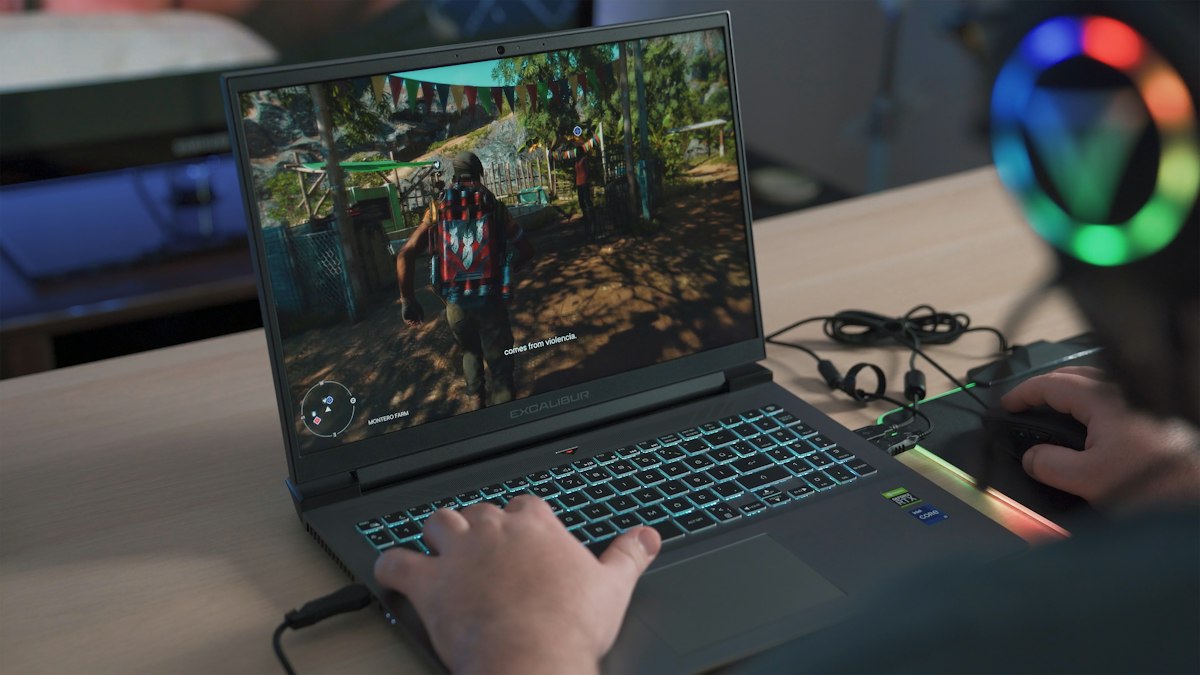
No, you do not need an NVIDIA graphics card to use GeForce NOW. A compatible PC with Intel or AMD graphics, including integrated graphics, can stream supported games. NVIDIA’s servers handle the game’s rendering; your device receives the video and sends back your inputs.
You still need a supported device and a reliable connection. “No NVIDIA GPU required” does not mean that every old computer can stream at every resolution. Here is how to check the requirements that actually matter.
Why an Intel or AMD PC can use GeForce NOW
Installing a game locally asks your own CPU and GPU to run it. GeForce NOW moves that workload to a remote gaming system. Your computer’s graphics hardware has a different job: helping decode and display the incoming stream.
That is why a game’s demanding PC specifications do not automatically rule out your laptop. The relevant starting point is the streaming service’s requirements, followed by your network and the features you want to use.
The GeForce name can make this confusing. Our GTX versus RTX guide explains those graphics-card families, but owning either family is not an entry requirement for NVIDIA’s cloud service.
What does a Windows PC actually need?
NVIDIA’s official GeForce NOW requirements list these minimums for a conventional Windows PC:
- A 64-bit version of Windows 10 or later.
- A dual-core x86 or x64 processor running at 2.0 GHz or faster.
- 4GB of system memory.
- A GPU supporting DirectX 11 or later.
Notice that the graphics requirement is a capability, not an NVIDIA brand requirement. Integrated graphics can qualify. However, basic compatibility does not promise support for every advanced streaming mode. Higher resolutions, refresh rates, HDR, and other features can have additional device, app, display, and membership requirements.
Check the section for your actual platform. Windows requirements should not be copied over to a Mac, Linux PC, Chromebook, phone, or television.
Internet speed and latency are separate checks
A compatible GPU cannot compensate for a connection that keeps dropping packets or takes too long to reach the streaming server. NVIDIA publishes these baseline connection requirements:
| Target or measurement | Requirement |
|---|---|
| 720p streaming, up to 60 FPS | At least 15 Mbps |
| 1080p streaming, 60 FPS | At least 25 Mbps |
| Network latency to an NVIDIA data center | Less than 80 ms |
NVIDIA recommends wired Ethernet or 5 GHz Wi-Fi. Meeting these thresholds is a starting point, not a guarantee of flawless play. The connection still has to behave well while other people in your home use it.
Download speed describes how much data can move; latency describes delay. A high-speed plan does not necessarily mean a short trip to the cloud server. Our explanation of PC latency versus network delay covers that distinction. A local graphics setting cannot remove distance from the network path.
Your Steam library is not automatically a cloud library
Before troubleshooting your hardware, check whether the game and its storefront are supported. NVIDIA’s GeForce NOW FAQ explains that you generally need to own the game through a supported store, unless it is free-to-play or covered by an eligible subscription entitlement.
Membership in GeForce NOW does not unlock every paid game. Store support matters, too: a listing for one PC storefront should not be treated as confirmation for every other version.
For a concrete example, Aniimo’s GeForce NOW launch announcement lists Steam. Checking that detail is more useful than buying a faster GPU to solve an access problem.
Test your current PC before buying hardware
- Confirm the game and store. Find the title in GeForce NOW, then check the account you will use.
- Try the Free membership. It offers a way to evaluate the service, although queues and advertising are part of the free experience.
- Begin with a modest target. Try 720p or 1080p before chasing a premium resolution or frame rate.
- Change one variable at a time. Compare Wi-Fi with Ethernet if possible. Try a lower streaming resolution separately so you can tell what helped.
If the app reports unsupported hardware, check your exact device against NVIDIA’s requirements. If it launches but the stream breaks up, investigate the connection and streaming settings first. Neither symptom automatically means you need a new NVIDIA card.
For someone keeping an older laptop in service, that is the useful opportunity: test whether it can be a good streaming device before judging it by the specifications of games it will not be rendering locally.