
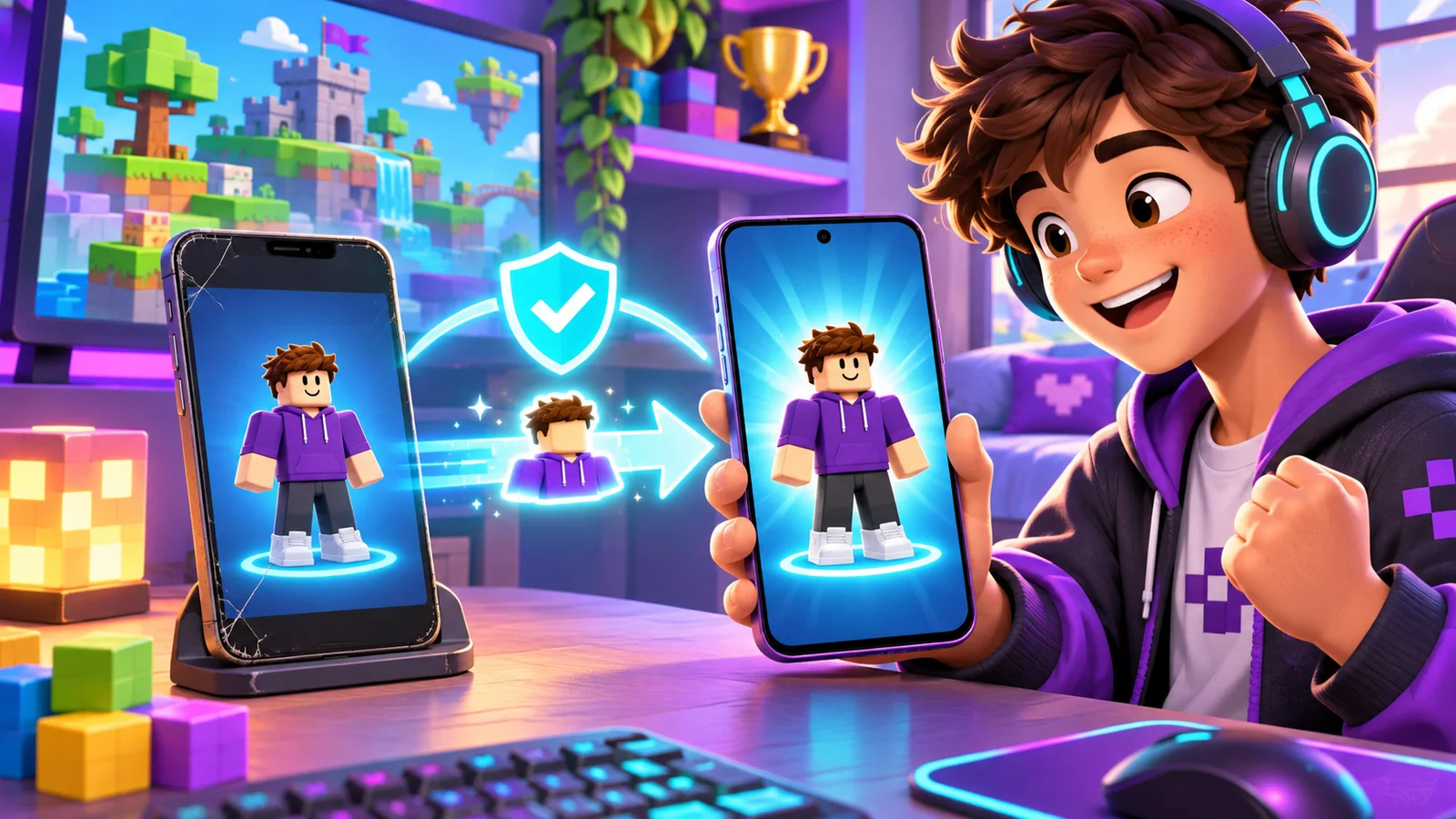
You do not need to transfer Roblox game files or progress manually when moving to a new iPhone or Android phone. Install Roblox on the new device and sign in to the same Roblox account. Your Robux, avatar items, friends, and experience progress stay with the account, not the old phone.
The important part is confirming your login method before wiping or selling the old device. If you are still signed in, Roblox Quick Login can authorize the new phone without entering the password.
Safest method: prepare the old phone first
Open Roblox on the old phone and check the exact username in your profile. Then go to Settings and confirm that the account has a verified email address or phone number. Add two-step verification if it is not already enabled.
Do not create a new account on the new phone. A fresh account will have a different inventory, friends list, Robux balance, and game progress. If the home screen looks empty after login, compare the username with the one shown on the old device.
Use Roblox Quick Login
Roblox’s official Quick Login instructions let an already signed-in device approve a new one. On the new phone, open the login screen and select “Log In with Another Device.” Roblox displays a one-time code that remains valid for five minutes.
On the old phone, open Account Settings, choose Quick Login, and enter the code. Review the device information carefully, then select “Grant Full Account Access.” The new phone should sign in to the same account.
Only enter a code that you personally requested. Never type a code sent by another player, a stranger in chat, or someone promising free Robux. A Quick Login code grants access to your account.
If Quick Login is unavailable
You can sign in with the Roblox username and password. Roblox also supports email login when the email is verified, though an email connected to several usernames may require the exact username. Phone-number login is available in some mobile apps when the number is verified.
If you forgot the password, use the official recovery option tied to the verified email or phone number. Do this before erasing the old phone. Avoid third-party “recovery” sites and never send passwords, backup codes, receipts, or identity documents to another player.
Why progress may appear missing
The most common cause is signing into the wrong account. Check the username, avatar, friends, and transaction history. Families sometimes have several accounts linked to one parent email, which makes an exact username especially important.
An individual Roblox experience can also have a temporary data-loading problem. Check the Roblox status page, close and reopen the app, and try the experience again later. If the app itself cannot connect, follow our Roblox Error 279 troubleshooting guide.
Purchases made through Apple or Google may appear in the account after the store transaction finishes. Do not buy the same item again immediately. Verify that the new phone is logged into the correct Roblox account and allow pending transactions time to process.
Secure the account after switching phones
In Roblox Settings, open Security and review “Where you’re logged in.” The session list shows devices, approximate locations, and recent activity. Log out the old phone after the new one works, especially if you are giving the device to someone else.
If you see an unfamiliar session, sign it out and change the password to a unique one. Keep two-step verification enabled. Our guide to Roblox bans, shared Wi-Fi, and VPNs explains a different account concern and how official appeals work.
Before you erase the old phone
Confirm that the new phone opens the correct profile, shows the expected Robux and inventory, and loads one of your regular experiences with the right progress. Save any recovery codes somewhere secure and outside both phones.
Once those checks pass, log the old Roblox session out and remove the device according to Apple’s or Google’s reset instructions. Your Roblox data will remain available because you are continuing with the same account.