
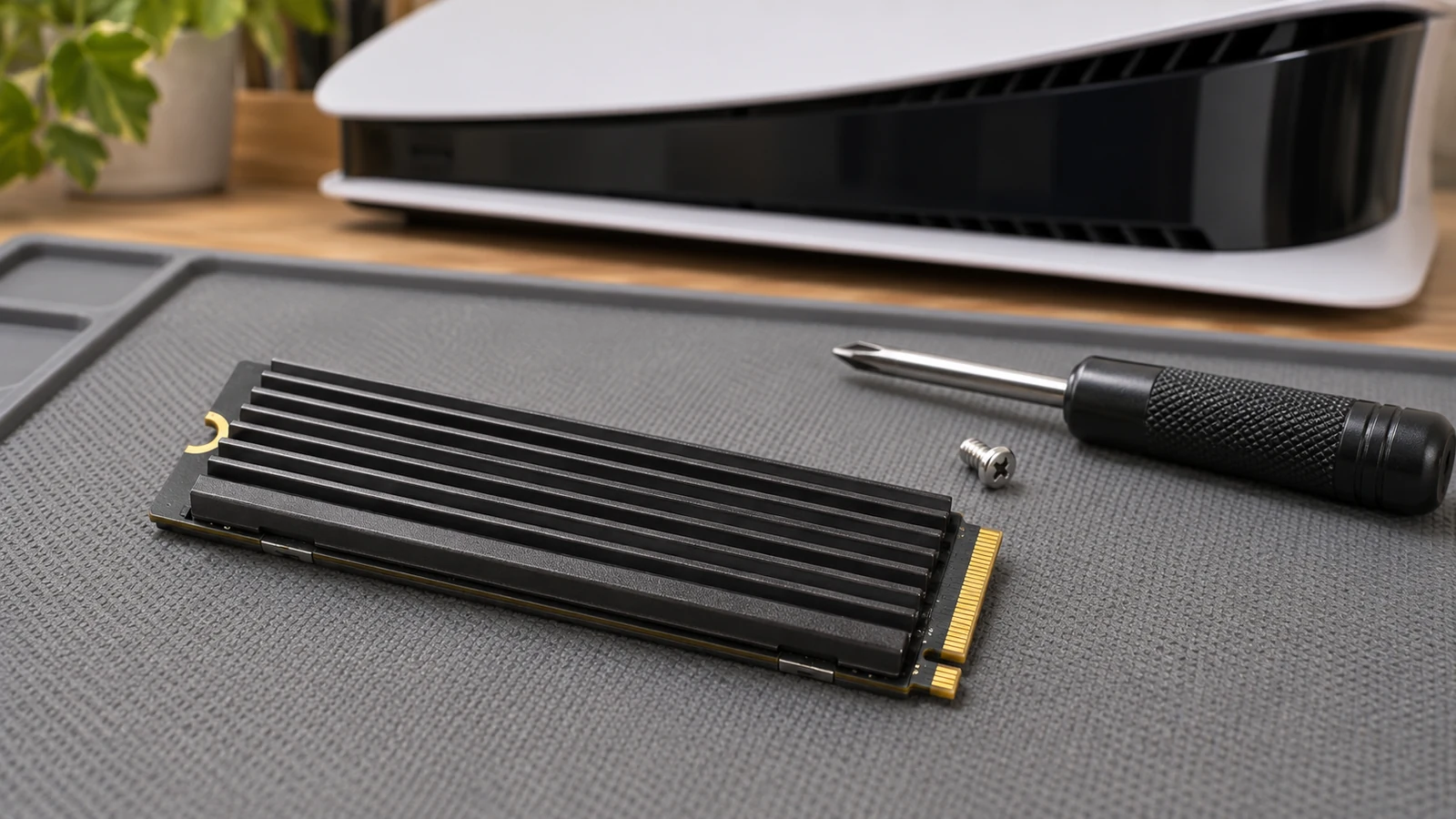
Slide the M.2 SSD out of your old PS5 and you could save yourself an evening of downloads. Sony supports moving a compatible drive straight to a PS5 Pro with its installed games intact. The tricky part comes when you open one of those games and discover that your last checkpoint is still on the console you were about to trade in.
Think of it as two jobs. Move the drive for the games. Move your saved data separately for the hours you put into them. It helps to do the second job while both consoles are still within reach.
See which games are actually on the M.2 drive
On the old PS5, open Settings > Storage > M.2 SSD Storage. Look for the titles you want on day one. A game tile on the home screen tells you it was installed, but this screen tells you where it lives. Anything on the console’s built-in drive stays there when you pull out the expansion SSD.
Have spare capacity on the M.2? From Game Library, highlight a game, press the Options button, and select Move Games and Apps. Choose M.2 storage if the console offers more than one destination. You only need to move the games you’re keen to have ready. A dozen downloads you’ll never launch can wait.
Move your saves before you trade in
Sony’s PS5 data transfer guide covers saves, captures, and other console data. Sign in to the same PlayStation account on both systems, update both consoles, and connect them to the same network. You can transfer during the Pro’s setup or start it later under Settings > System > System Software > Data Transfer on the Pro.
Keep both consoles on until the network transfer finishes. The Pro can restart and show some of your games while the transfer is still going. To see whether it’s done, open Downloads/Uploads in the control center. Wait for it to finish before you go looking for a save.
If you already use PlayStation Plus cloud storage, confirm that the old system has uploaded the latest save before you download it on the Pro. Check the timestamp. An earlier cloud copy can look perfectly fine until you load it and find yourself two missions back. If you only have the old console for another day, verify the save transfer before you hand it over.
Move the expansion SSD without formatting it
Shut both consoles down completely, unplug them, and give them time to cool. Sony’s illustrated M.2 removal and installation instructions show which cover to remove for each model group. Follow the instructions for your old console, then use the CFI-2000/7000 section for the PS5 Pro.
Use a No. 1 Phillips screwdriver and ground yourself before handling the drive. Hold it by its edges, seat it fully in the new slot, and secure it with the spacer in the position for its length. Keep its existing cooling structure attached. The PS5 SSD heatsink guide explains what should fit beneath the expansion-slot cover.
Reassemble the console before turning it on. Sign in to the same account, then check M.2 SSD Storage on the Pro. Sony says an M.2 SSD already used in another PS5 can move between consoles without a format. If a format prompt appears unexpectedly and you want to preserve the drive’s contents, stop there and check the installation. Formatting erases the drive.
The game shows up. Will it launch?
An installed game still needs a valid license. For a digital purchase with a lock icon, check the purchasing account, then use Sony’s Restore Licenses steps if needed. A game bought on disc still needs the disc and a compatible drive. A subscription game also needs the access granted by that subscription.
Pick one game you know well and load a familiar save before packing up the old PS5. Seeing the game in storage confirms the drive moved. Seeing your last checkpoint confirms you’re ready to carry on.