
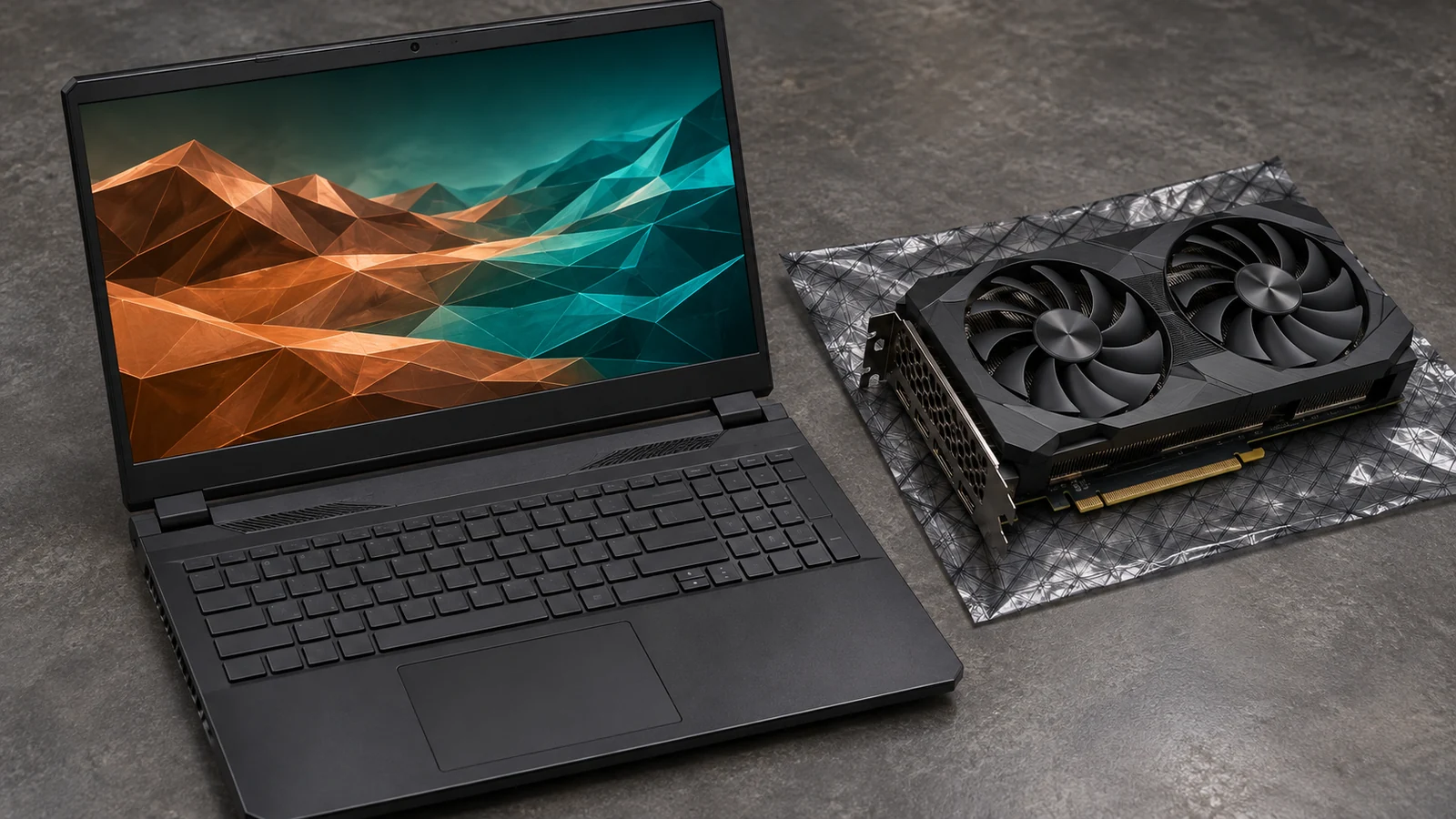
You bought a laptop with a dedicated graphics chip, opened a game, and the frame rate looks like the machine forgot it had one. Before you turn every graphics setting down, check which GPU is rendering the game. On a Windows 11 PC with two GPUs, you can set a preference for that game alone.
Start with the game that’s running
Open Task Manager with Ctrl + Shift + Esc while the game is running. Under Performance, match each GPU number to its name. Your hardware determines the order, so use the names as your guide. A CPU’s built-in graphics might be listed as GPU 0 on one laptop and labeled differently on another system.
On the Processes tab, enable GPU engine by right-clicking the column headers if you don’t already see it. Look at the game’s process during actual gameplay. Microsoft’s explanation of GPU activity in Task Manager shows how Windows identifies which engine a process is using. A 3D entry beside the game is a better clue than a brief spike in the desktop GPU graph.
Check the name of the game process while you’re there. A launcher can sit open all evening without doing the work of drawing the game.
Set the game to High performance
- Go to Settings > System > Display > Graphics.
- Find the game under the per-app settings. If the desktop game is missing, use the desktop-app browse option and add the executable that runs the game itself. Use the Store-app option where applicable.
- Open the game’s graphics options and pick High performance. Check that the GPU name shown there is the dedicated one you expected.
- Save the change, fully exit the game, and launch it again.
Microsoft’s Windows 11 graphics settings guide shows the available preferences and the restart step. The exact labels for adding an app can vary with your Windows build. If you use NVIDIA’s Control Panel, NVIDIA documents that the Windows preference takes priority when one exists for the app.
The launcher changed. The game didn’t.
If the same GPU still shows up after a restart, go back to Task Manager and find the process that appears only when you enter the game. A store shortcut and a publisher’s launcher may both open first. Set the preference for the executable that stays busy once you’re playing. If you see two similar entries, right-click the running game in Task Manager and look for Open file location. When available, that menu item saves you from hunting through the installation folders. An update or reinstall can change the path, so check it again if a preference that used to work suddenly has no effect.
On a laptop, plug in the charger when you retest. Some machines also have a vendor utility with a mode that turns off the dedicated GPU to save power. If Windows lists only one GPU, check that utility and whether the dedicated GPU appears under Display adapters in Device Manager before spending time on individual apps.
On a desktop, the graphics preference and the monitor connection are separate pieces of the puzzle. If you’re using a tower with a graphics card, check which port your monitor should plug into. Laptop screens can be wired through integrated graphics even while a dedicated chip does the 3D rendering, so seeing activity on both chips can be normal.
If your main goal is to fix one game, leave your browser and other everyday apps on their current settings. A per-game preference is easy to undo. Return to that entry in Graphics settings and choose Let Windows decide if you want Windows to manage it again.
Retest in the same scene with the same settings, ideally somewhere you can stand or drive through twice. If Task Manager already shows the dedicated chip doing the 3D work and the game still runs poorly, you’ve ruled out the GPU preference. That’s a good time to look at resolution and in-game settings instead of changing the graphics preference for every program on the PC.