
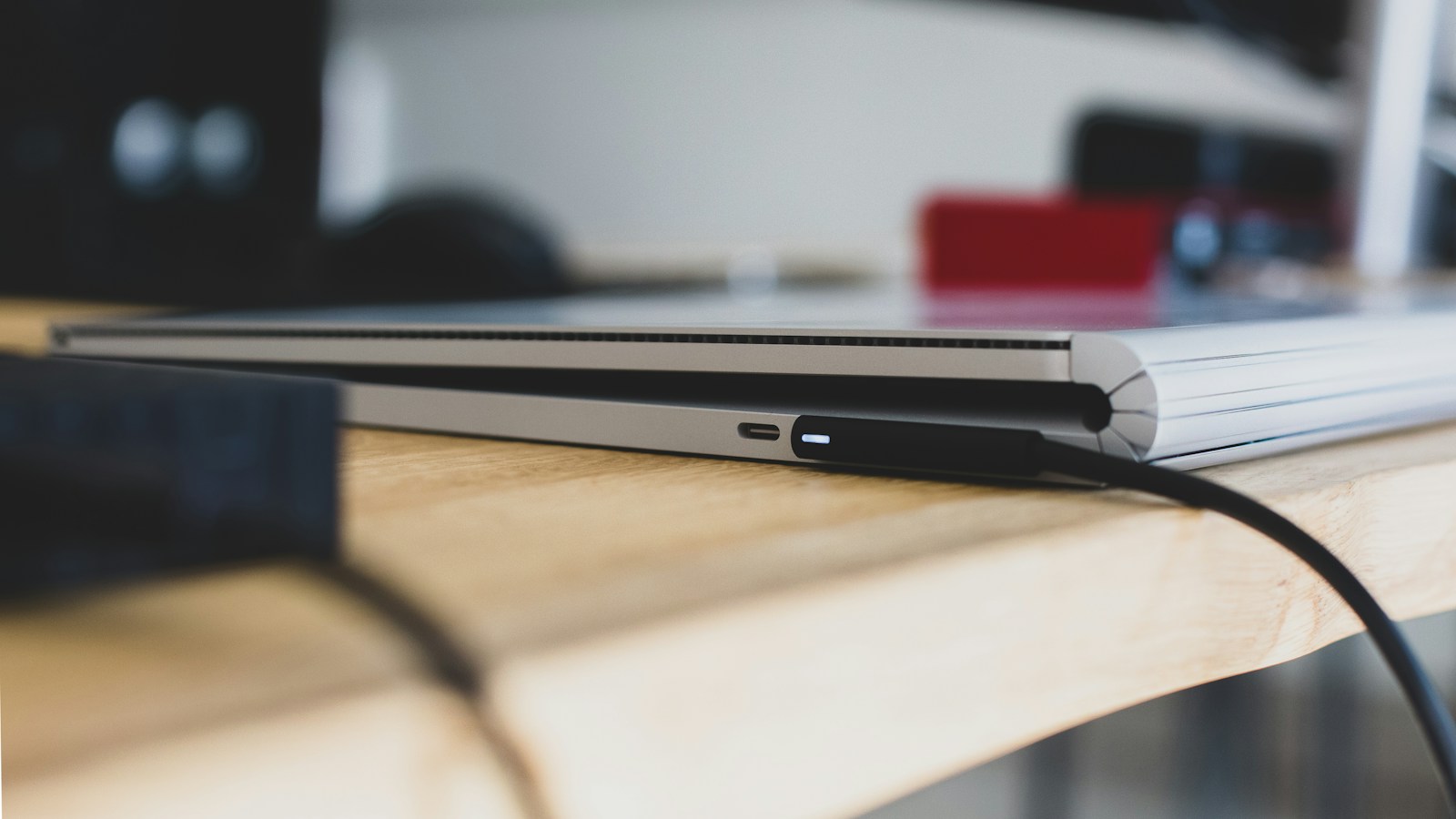
Leaving a modern laptop plugged in is generally safe. The charging system is designed to stop pushing a full charge into the battery, so the machine should not keep “overcharging” in the old-fashioned sense. The real concern is slower and less dramatic: lithium-ion batteries age faster when they spend long periods hot and near 100 percent.
That means the best setup depends on how you use the laptop. A desktop replacement can stay connected to power, but it benefits from a charge limit and good cooling. A laptop that travels every day may need a full charge more often.
Why staying at 100 percent can age the battery
A battery under high charge voltage experiences more chemical stress than one sitting around the middle of its range. Heat accelerates that wear. The combination is common in gaming laptops, workstations, and thin notebooks running demanding software while connected to a charger.
Battery wear is normal and cannot be eliminated. The goal is to avoid unnecessary stress. Microsoft’s Windows battery-care guidance recommends keeping a lithium-ion battery between 20 and 80 percent several times a week rather than repeatedly draining it completely. You do not need to unplug the laptop every few minutes or obsess over every percentage point.
Use smart charging or an 80 percent limit
Many laptops include a battery-protection feature that limits charging to roughly 60 or 80 percent. Names vary by manufacturer: Smart Charging, Conservation Mode, Battery Health Charging, and Battery Care are common examples. The option may appear in the manufacturer’s utility, firmware settings, or Windows.
Microsoft explains that Smart Charging can deliberately keep a device below 100 percent when it detects long periods on AC power. Windows does not provide one universal switch for every PC because the laptop maker controls the implementation.
If your computer spends most of the week at a desk, enabling that limit is the single most useful change. Turn it off temporarily before a trip when you genuinely need the full battery capacity.
Should a gaming laptop stay plugged in?
Yes, while gaming or doing sustained creative work. High-performance laptops often cannot deliver full CPU and GPU power from the battery alone. Playing unplugged can reduce performance, increase battery cycling, and drain the pack quickly.
The important part is heat management. Keep vents clear, use the laptop on a hard surface, clean dust from the cooling path, and avoid leaving the computer in a hot car. If the manufacturer’s software offers a charge ceiling, combine it with AC power during gaming.
Also use a charger that can supply the required power. A small USB-C adapter may show the charging icon while the battery still drops under load. Our USB-C Power Delivery guide explains why the charger, cable, port, and laptop must agree on wattage.
Do you need to drain the battery to calibrate it?
Routine full discharges are not healthy maintenance for a lithium-ion battery. They add a deep cycle and can leave the battery at a stressful low state. If the percentage meter becomes obviously inaccurate, a manufacturer may recommend an occasional calibration cycle, but that is a troubleshooting step, not a weekly habit.
For ordinary use, plug in before the battery becomes critically low. Letting it reach zero once is unlikely to ruin it, but repeatedly doing so provides no longevity benefit.
What if the laptop is stored for weeks?
Do not store it fully charged or completely empty. Microsoft recommends a charge around 40 to 60 percent for long-term storage. Shut the machine down, keep it in a cool and dry place, and check it periodically because a battery slowly loses charge even when the computer is off.
Signs that the battery needs attention
- The case, trackpad, or keyboard starts bulging.
- Battery life drops suddenly rather than gradually.
- The laptop shuts down at a high reported percentage.
- The battery or chassis becomes unusually hot during light use.
- Windows or the manufacturer’s diagnostic reports a service warning.
A swollen battery is a safety issue. Stop using the laptop, disconnect power if it is safe to do so, and arrange service through the manufacturer or a qualified repair shop. Do not puncture or compress the pack.
The practical answer
Keeping a laptop plugged in is fine when you need performance or use it as a desktop. For better long-term battery health, enable an available charge limit, control heat, avoid frequent zero-percent discharges, and use the correct charger. Charge to 100 percent when portability matters, then return to the protected mode when the laptop goes back to the desk.